Fabric Recalculate and Deploy Diffs and Configuration Troubleshooting
The Cisco NDFC Configuration Compliance feature ensures the accuracy of the configurations that you provision from Cisco NDFC to the fabric. It detects any deviations (such as OOB changes) and provides the necessary remediation configurations.
It is recommended to deploy all switch configurations from Cisco NDFC. In some scenarios, it is necessary to make changes to the switch interface configuration OOB, which will cause configuration drift and switches to be reported as Out-of-Sync.
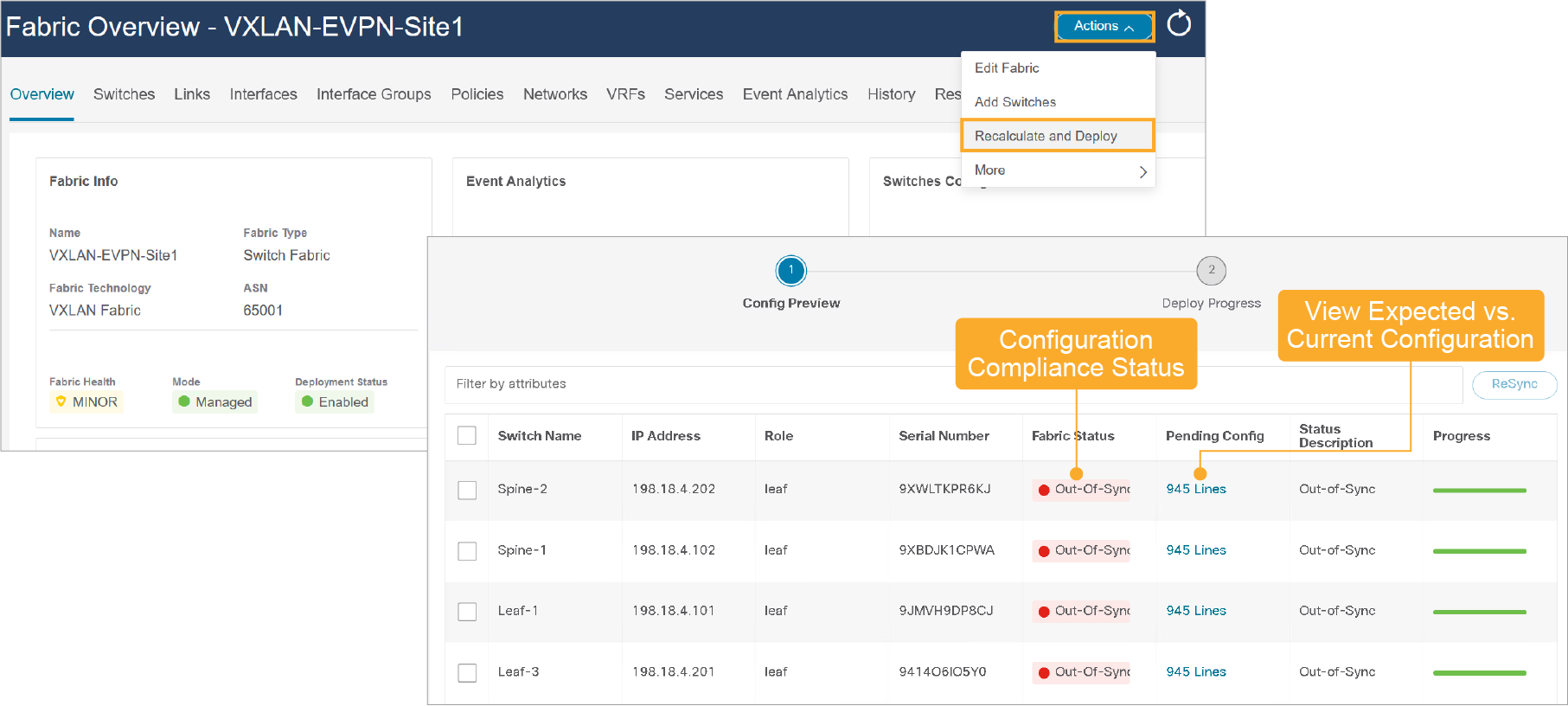
The Recalculate and Deploy button triggers the intent regeneration for the entire fabric, as well as a Configuration Compliance check for all the switches within the fabric.
The Recalculate and Deploy button is required but not limited to the following cases:
A switch or a link is added, or any change in the topology
A change in the fabric settings that must be shared across the fabric
A switch is removed or deleted
A new vPC pairing or unpairing is done
A change in the role for a device
When you click Recalculate and Deploy, the Deploy Configuration window appears.
If a provisioned configuration and switch configuration mismatch occurs, the Status column displays Out-of-Sync. For example, if you enable a function on the switch manually through a CLI, then it results in a configuration mismatch.
Side-by-Side Comparison
Preview the configuration before you apply it to the switches.
Although Configuration Compliance provides a simple color representation of the state across the nodes, Cisco NDFC also generates a side-by-side comparison view of the running configuration and the expected configuration for each switch.
The comparison provides more information about why a particular switch is marked out of compliance (Out-of-Sync). Configuration Compliance also provides a set of pending configurations that you can push to the switch with Cisco NDFC to return the switch to compliance (In-Sync). Configuration Compliance intelligently derives this set of pending configurations with a model-based approach that is agnostic to commands that you configure with the CLI.
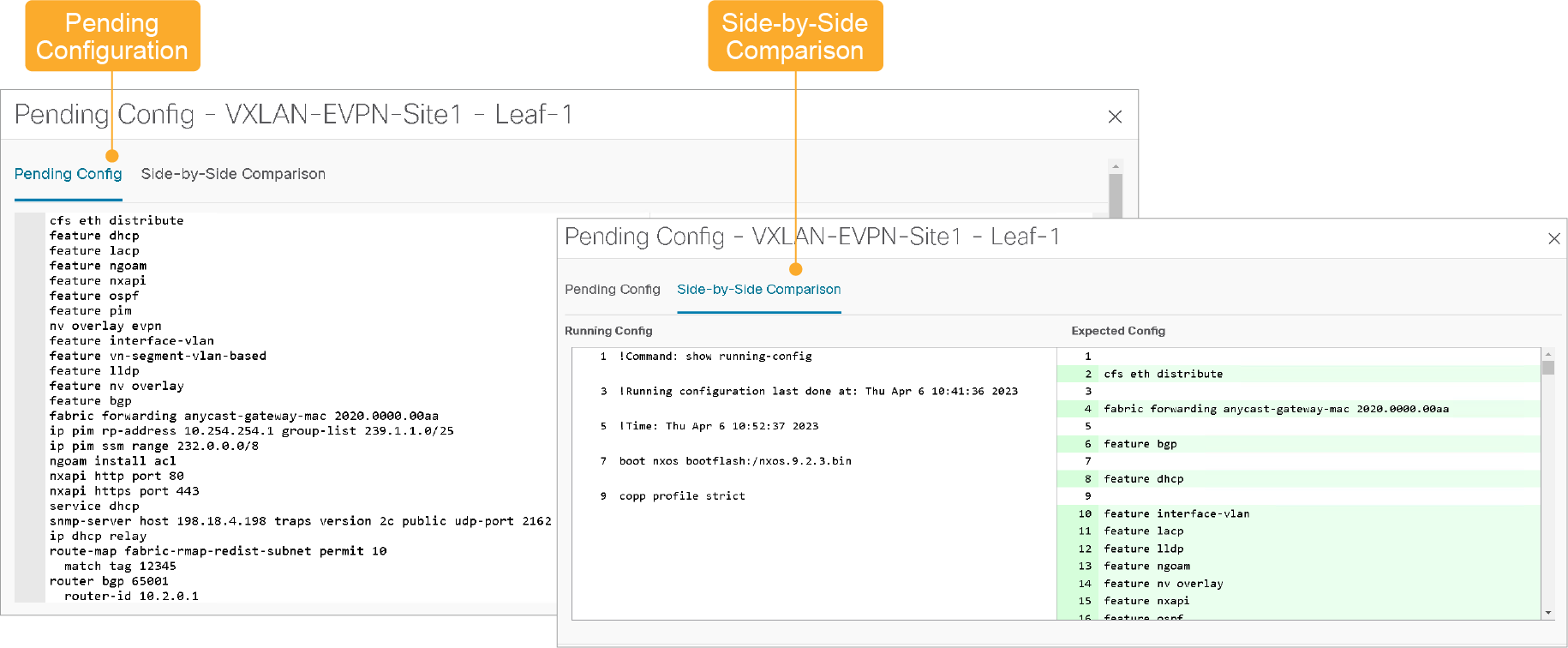
An Out-of-Sync status suggests an inconsistency between Cisco NDFC and the device configuration.
The Re-sync button displays for each switch in the Re-sync column. Use this option to resynchronize the Cisco NDFC state when a large-scale change occurs or if configuration changes register improperly in Cisco NDFC. The re-sync operation performs a full Configuration Compliance for the switch and re-collects show run and show run all commands from the switch. When you initiate the re-sync process, a progress message displays on the window. The Out-of-Sync or In-Sync status for the switch recalculates based on the intent that you defined in Cisco NDFC.
Configuration Deployment
Verify that the deployment Status is Success and the switches are In-Sync.
In the Config Deployment window, click Deploy Config at the bottom part of the window to initiate deployment of a pending configuration onto the switch. The Status column displays either a Failed or Success status. Investigate the reason for any Failed status and address the issue.
After the configuration is provisioned to all the switches and the status is Success, the status description is marked as Deployment completed, and all configuration lines in the Progress column are executed.
In the Topology pane, the switch icons turn green to indicate a successful configuration.
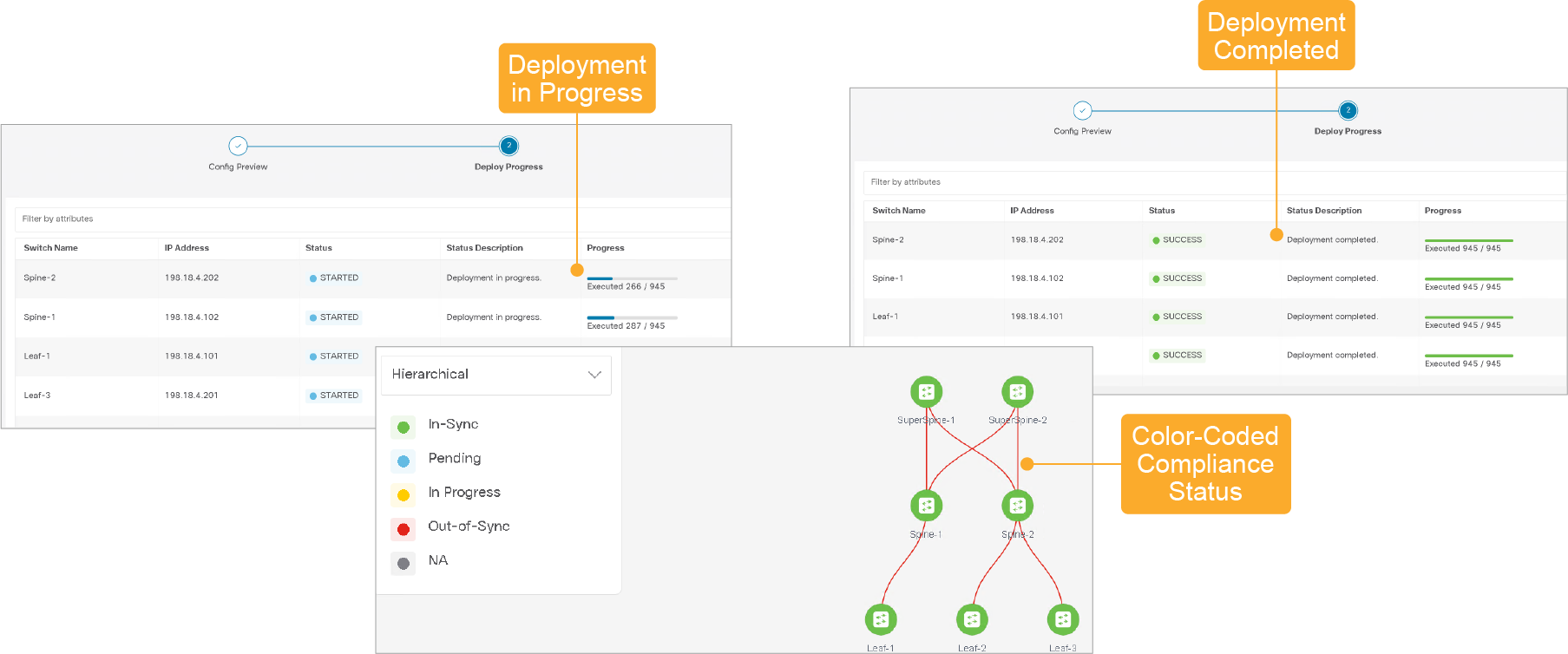
If a switch icon displays as red, the switch and Cisco NDFC configurations are Out-of-Sync. A switch displays in a blue color during pending deployment on a switch. The pending state indicates a pending deployment and a pending re-computation. You can click the switch and review the pending deployments with the Preview or Deploy options or click Recalculate and Deploy to re-compute the state of the switch.
When you right-click a switch icon, you can use the Deploy Config option to deploy per switch configurations. This option is a local operation for a switch; that is, the expected configuration or intent for a switch is evaluated against its current running configuration, and a Configuration Compliance check is performed for the switch to get the In-Sync or Out-of-Sync status. You can deploy configuration for single and multiple switches. In the Topology pane, enable Multi-select and then select multiple switches.
Configuration Troubleshooting Example
The following example of the Deploy Config option uses the switch-level freeform configuration policy. The Configuration Compliance function and principles apply to discovering existing and new switches.
In Cisco NDFC, you can add custom configurations through freeform policies in the following ways:
Fabric-wide
On all leaf, border leaf, and border gateway leaf switches in the fabric, at once
On all spine, super spine, border spine, border super spine, border gateway spine, and border switches, at once
On a specific switch at the global level
On a specific switch on a per-network or per-VRF level
You can deploy freeform CLIs when you create a fabric or when a fabric is already created.
All freeform configurations must exactly match the show running configuration output on the switch. Any configuration disparities will mark switches as Out-of-Sync and will be displayed as a diff during Recalculate and Deploy. You must adhere to the leading-space indentation style.
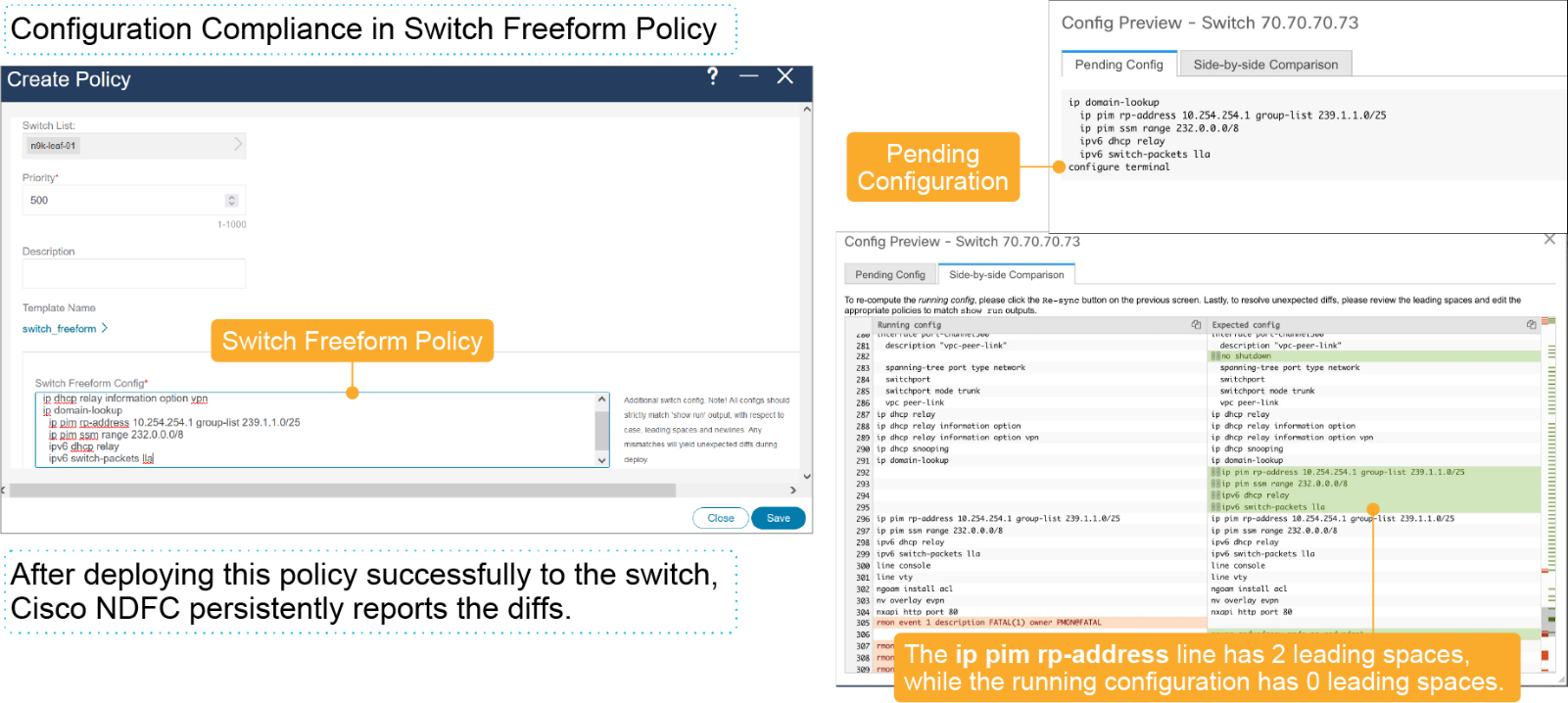
Suppose that Configuration Compliance detects incorrect spacing in the Switch Freeform Config field.
The switch freeform policy appears in the following manner: After deploying this policy successfully to the switch, Cisco NDFC persistently reports the diffs. After you click the Side-by-side Comparison tab, you can see the cause of the diff. As shown in the figure, the ip pim rp-address line has two leading spaces, while the running configuration has no leading spaces.
Configuration Troubleshooting Solution
You can resolve this diff by correcting the spacing in the corresponding Switch Freeform policy.
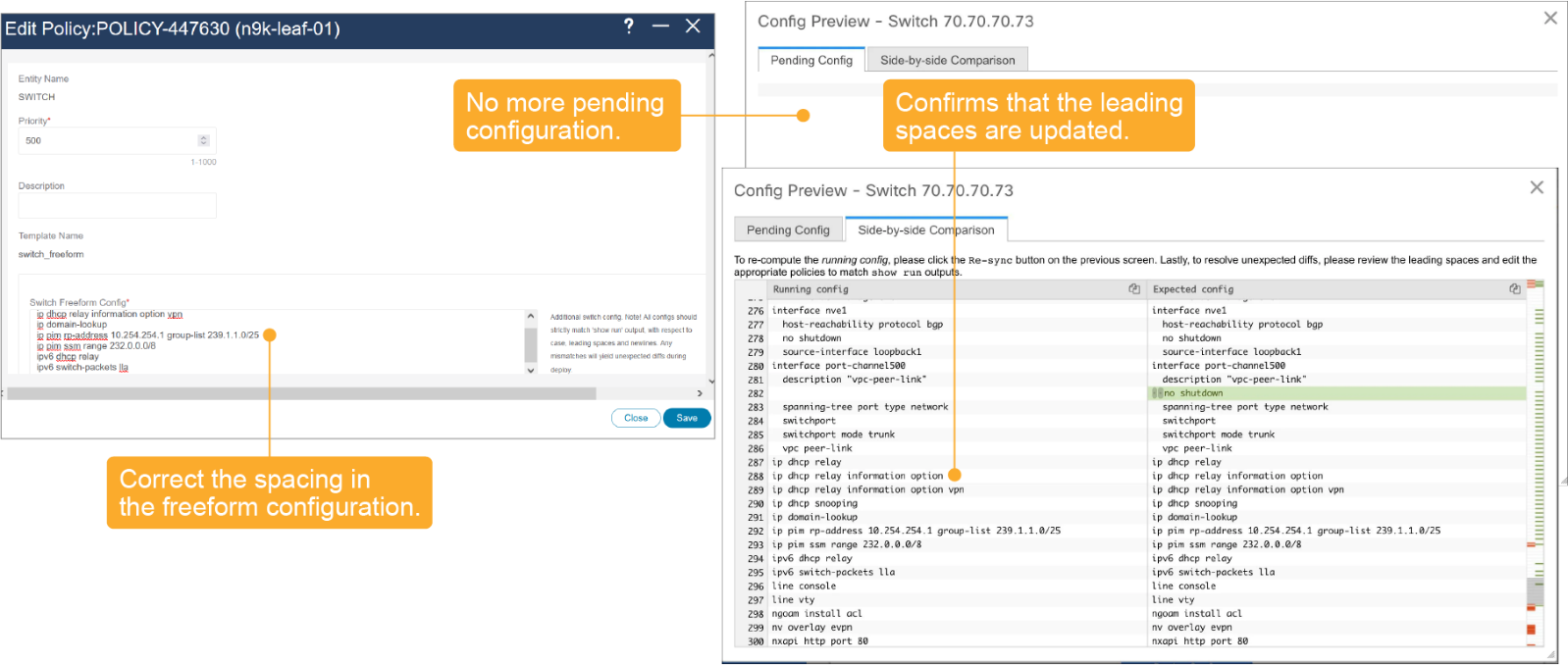
After you save, you can use the Push Config or Recalculate and Deploy option to recompute diffs.
As the figure shows, the diffs are now resolved. The Side-by-side Comparison tab confirms that you successfully updated the leading spaces.
The configuration format must be identical to the show running configuration of the corresponding switch. Any missing or incorrect leading spaces in the configuration can cause unexpected deployment errors and unpredictable pending configurations. If any unexpected diffs or deployment errors display, check the user-provided or custom configuration snippets for incorrect values.